A step-by-step implementation guide for organizers running round robin competitions from start to finish.
SPINDEX turns local competition into recognized performance data.
SPINDEX Round Robin lets club managers create, manage, and run round robin competitions directly from the platform. This guide walks through every step, from setting up a venue to completing a competition.
Ratings are calculated from certified match data, so every result means something. Players know where they stand.
A player's SPINDEX rating travels with them across clubs, cities, and events. Every certified match adds to their record.
One rating system across all participating clubs means fair comparisons and consistent competition anywhere in the network.

To access Round Robin after logging in to SPINDEX, use the two features highlighted in the sidebar: Venues and Competitions.
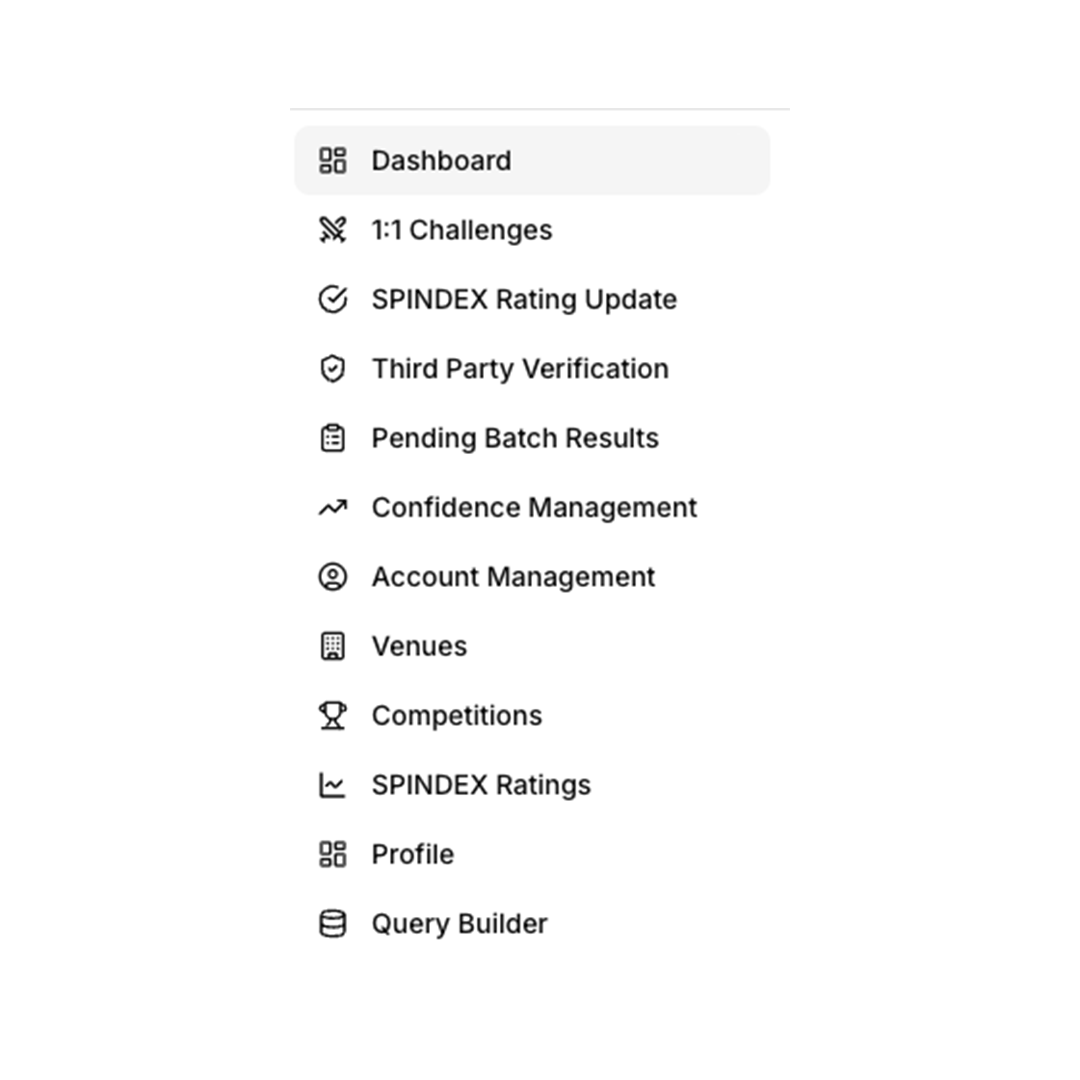
Before creating a competition, you need at least one venue on file.
Go to Venues in the sidebar.

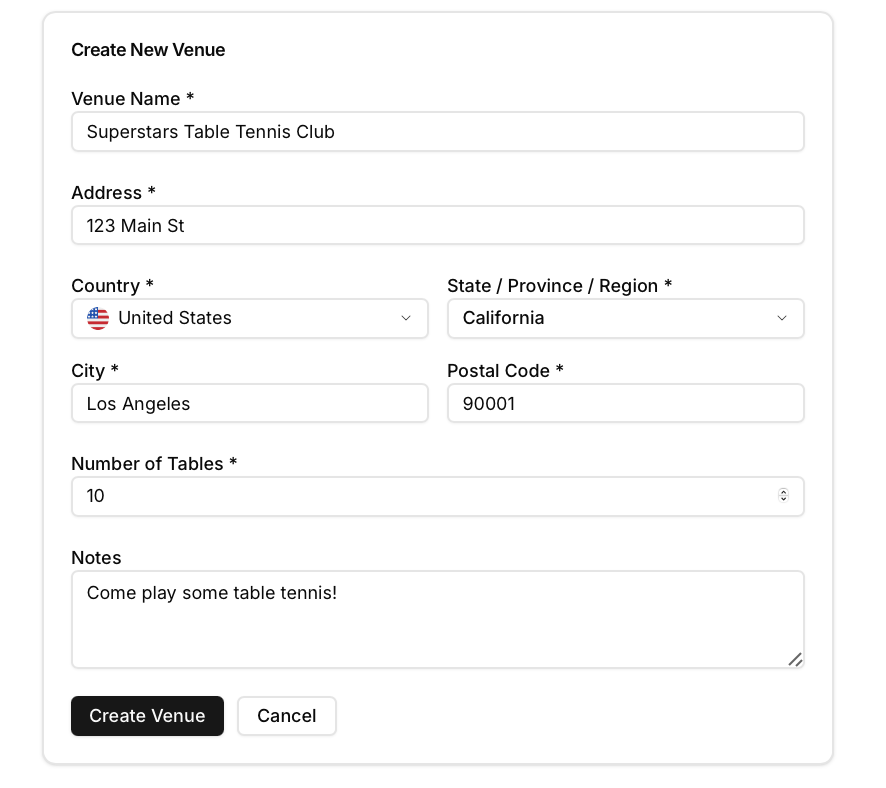
Fill in the form with your club name, address, country, city, postal code, number of tables, and optional notes.
Click Create Venue to save. The venue is now available when creating competitions.
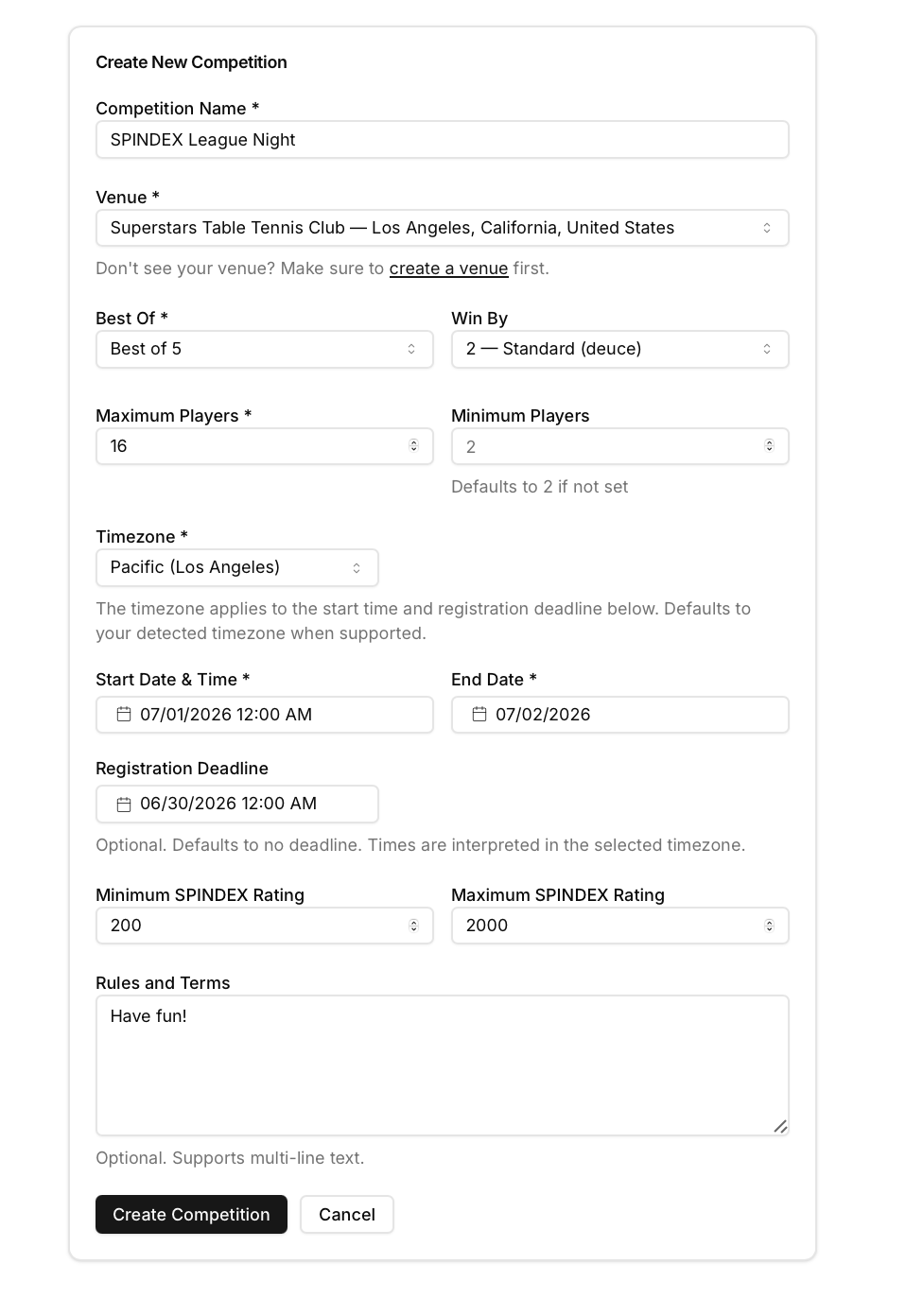
From the sidebar, go to Competitions, then click + Create Competition.
Fill out the required form fields including Competition Name, Venue, Best Of, Win By, Maximum/Minimum Players, Timezone, Dates, Registration Deadline, Rating Restrictions, and any House Rules. Once completed, click Create Competition to save it in Draft status.
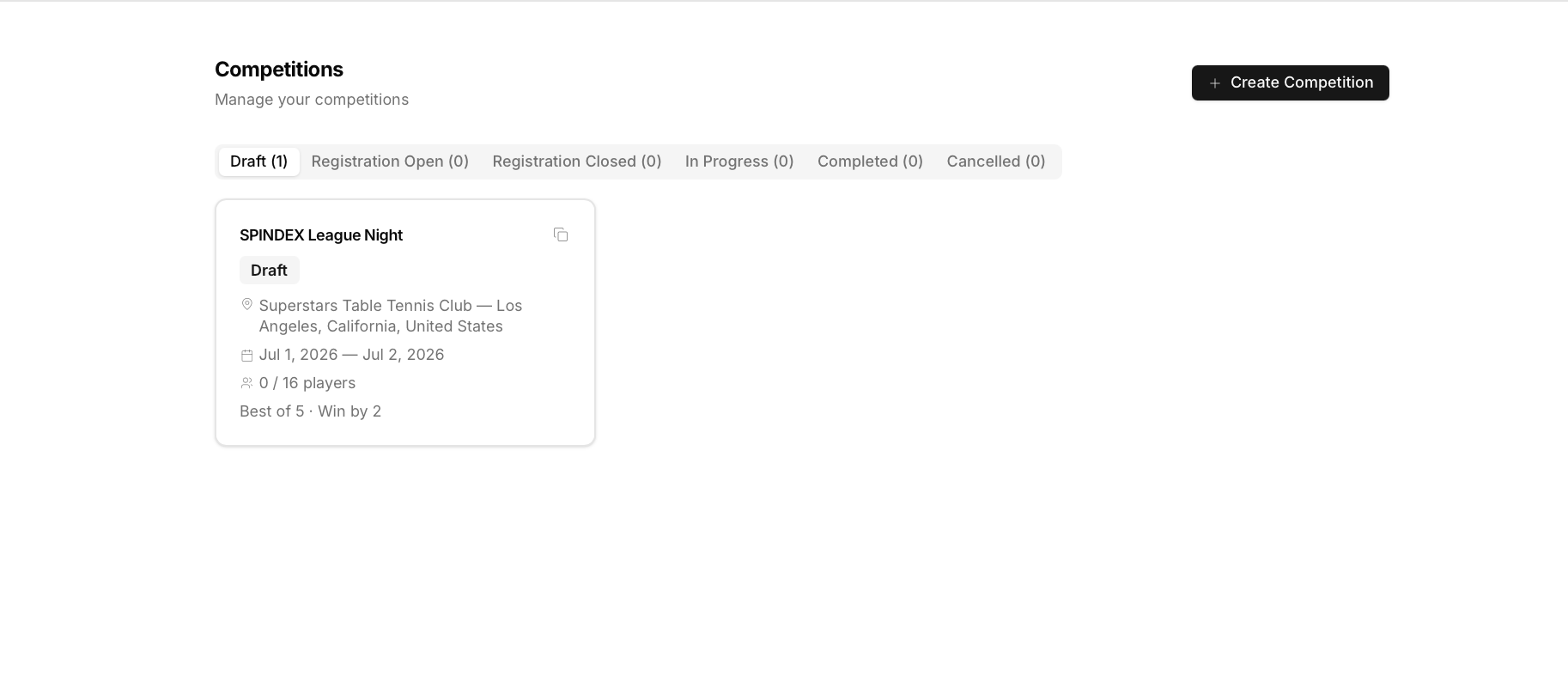
Competitions list showing the new competition in Draft.
Draft competition detail page — all settings visible, registration not yet open.
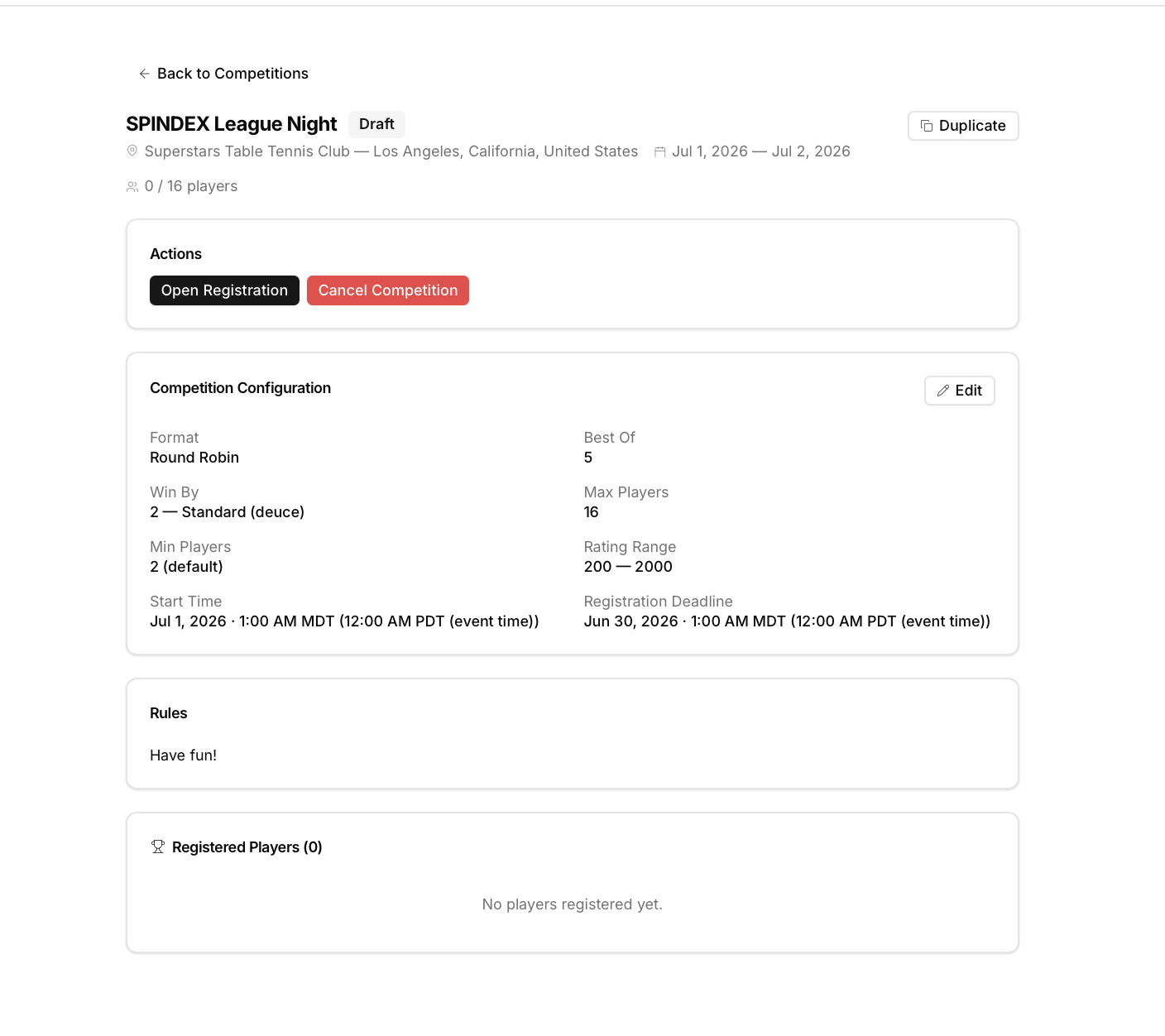
From the Draft page, click Open Registration in the Actions panel. The competition status changes to Registration Open, allowing players to see and sign up for the event.

You can also manually add players by scrolling to Registered Players on the Overview tab, clicking Add Player, and searching by name or SPINDEX ID.

Find the player in the Registered Players table.
Click the remove icon (person with minus) in the Actions column.
Confirm in the dialog. Removed players must re-register if spots are still available.
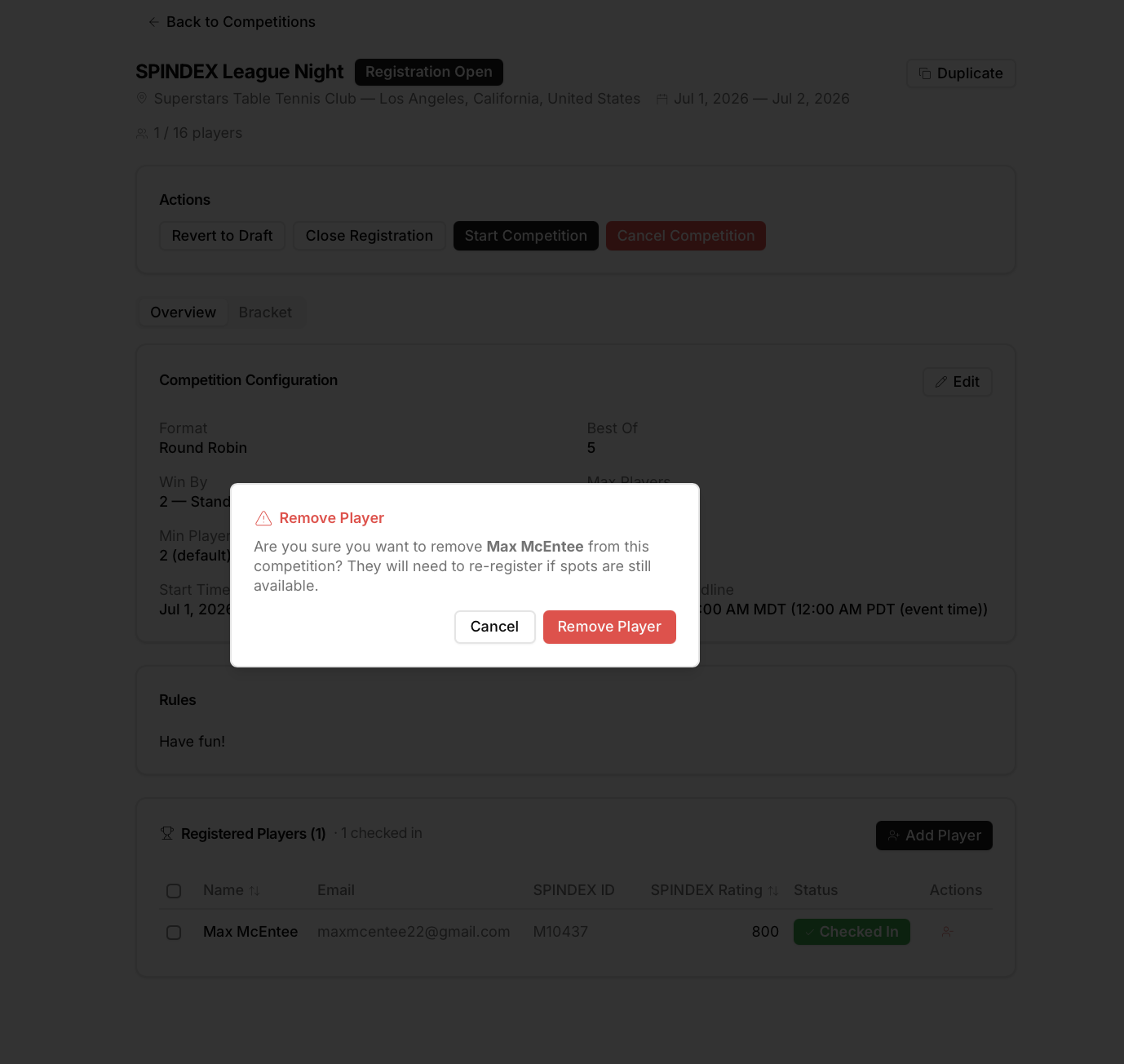
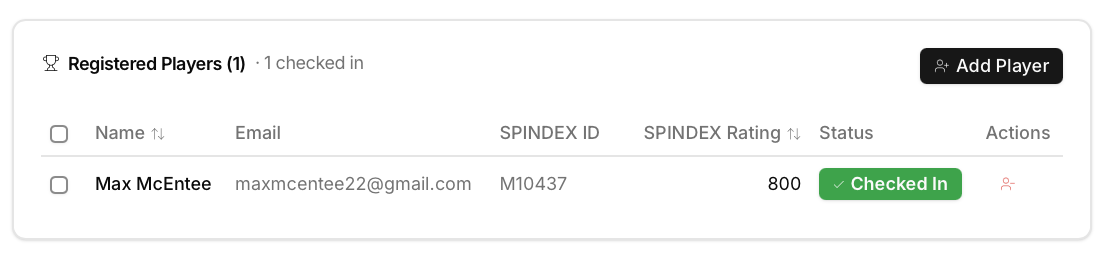
Once players are registered, check them in to confirm who actually showed up at the venue. You can check in players individually by clicking the Check In button next to their name, or perform a bulk check-in by selecting multiple players and clicking Check In Selected.
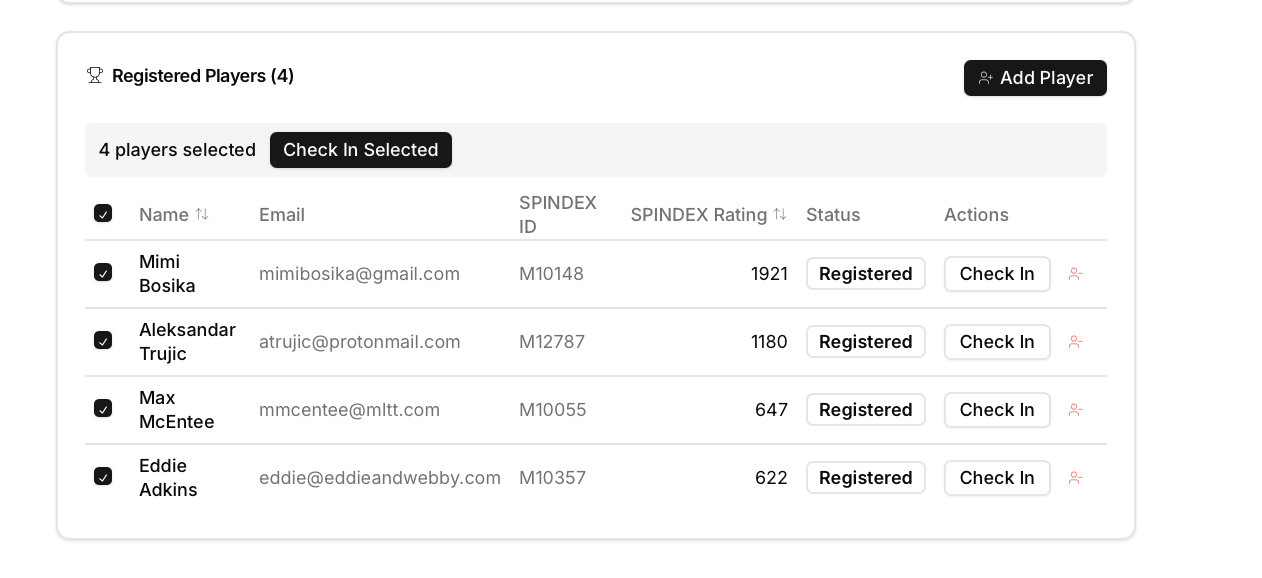
Select multiple players using the checkboxes on the left of each row. Once selected, a Check In Selected button appears at the top of the table. Click it to check in all selected players at once.
When you have your final roster and are ready to build the bracket, close registration by clicking Close Registration in the Actions panel. This prevents further online signups, though you can still manually adjust the roster if needed.

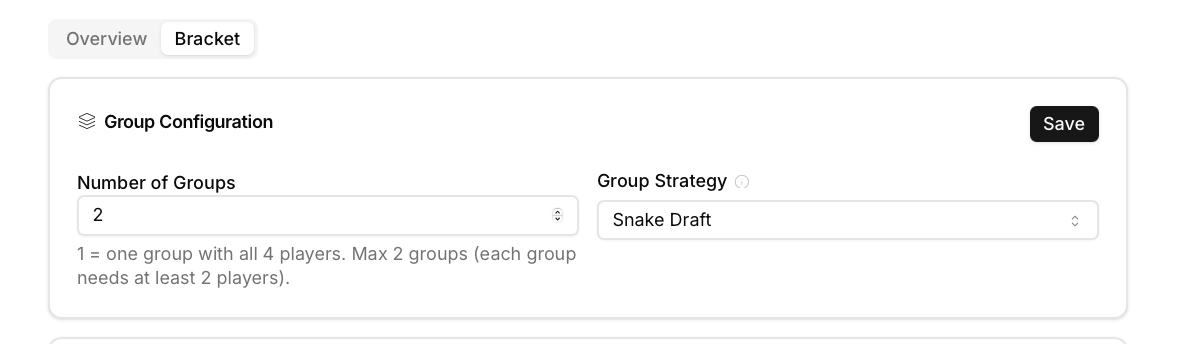
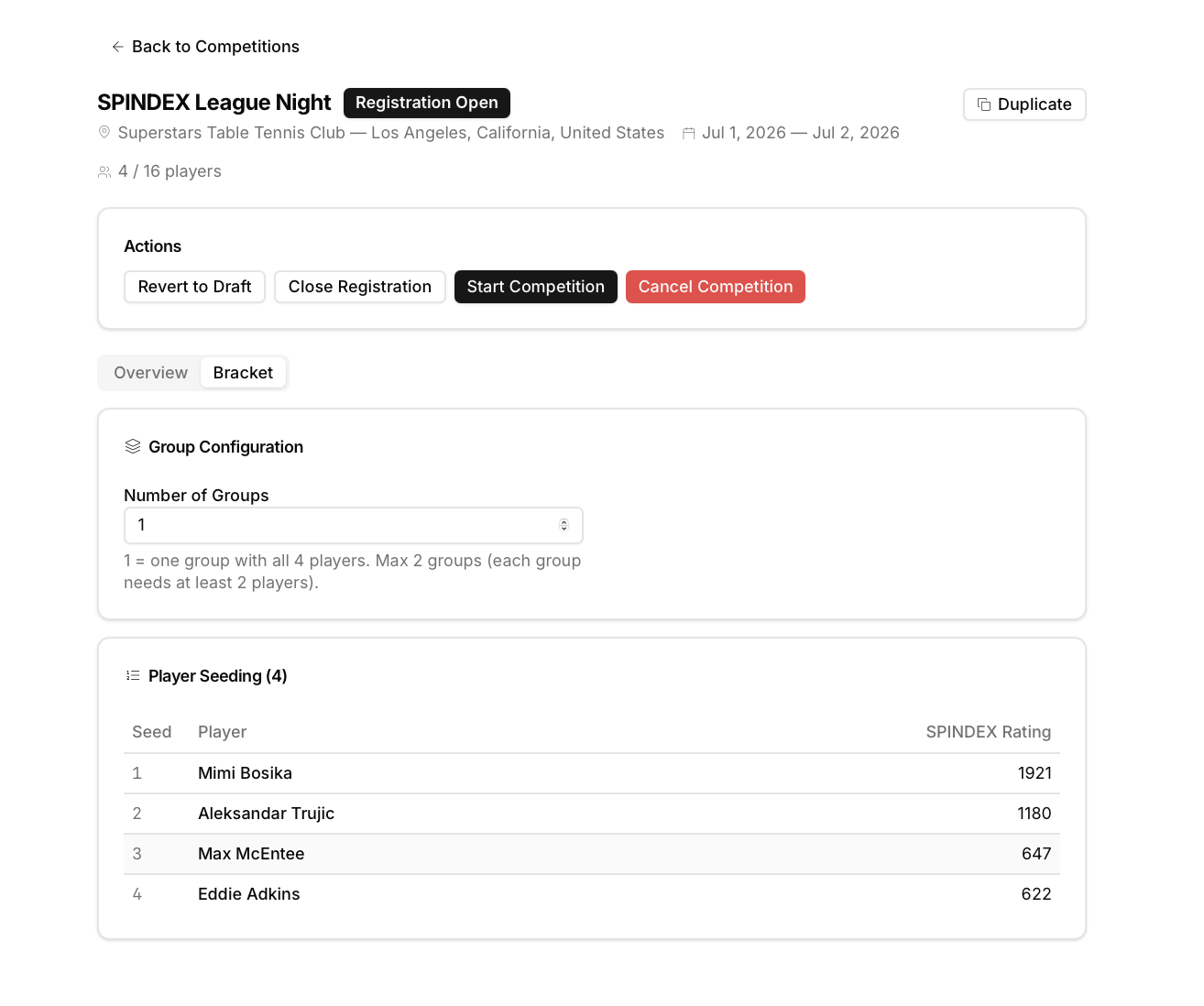
Go to the Bracket tab to set up groups. Select your Number of Groups and choose a Group Strategy (Snake Draft, Balanced Split, or Rating Tiers).
Snake Draft: Seeds players in a snake pattern (1→2→3, then reverses). Spreads top seeds across groups evenly.
Balanced Split: Distributes players to balance total SPINDEX Rating points per group as evenly as possible.
Rating Tiers: Groups players by rating bracket. Higher-rated players go in one group, lower-rated in another.
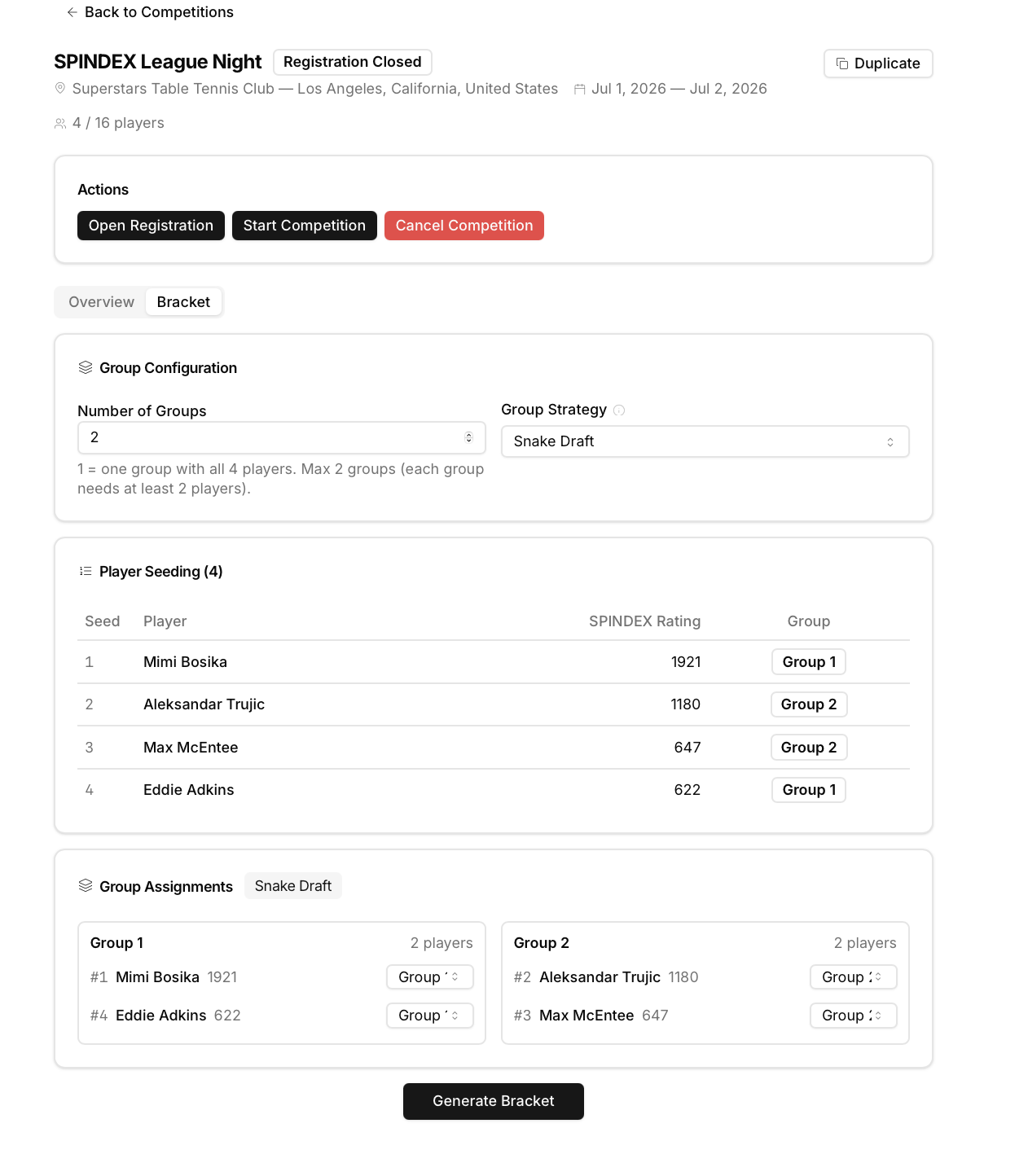
Below Group Configuration, the Player Seeding section lists all players ranked by SPINDEX Rating. Each player is assigned to a group based on the selected strategy. You can override group assignments using the dropdown next to each player.
The Group Assignments section shows the final split by group. Review that the distribution looks right before generating.
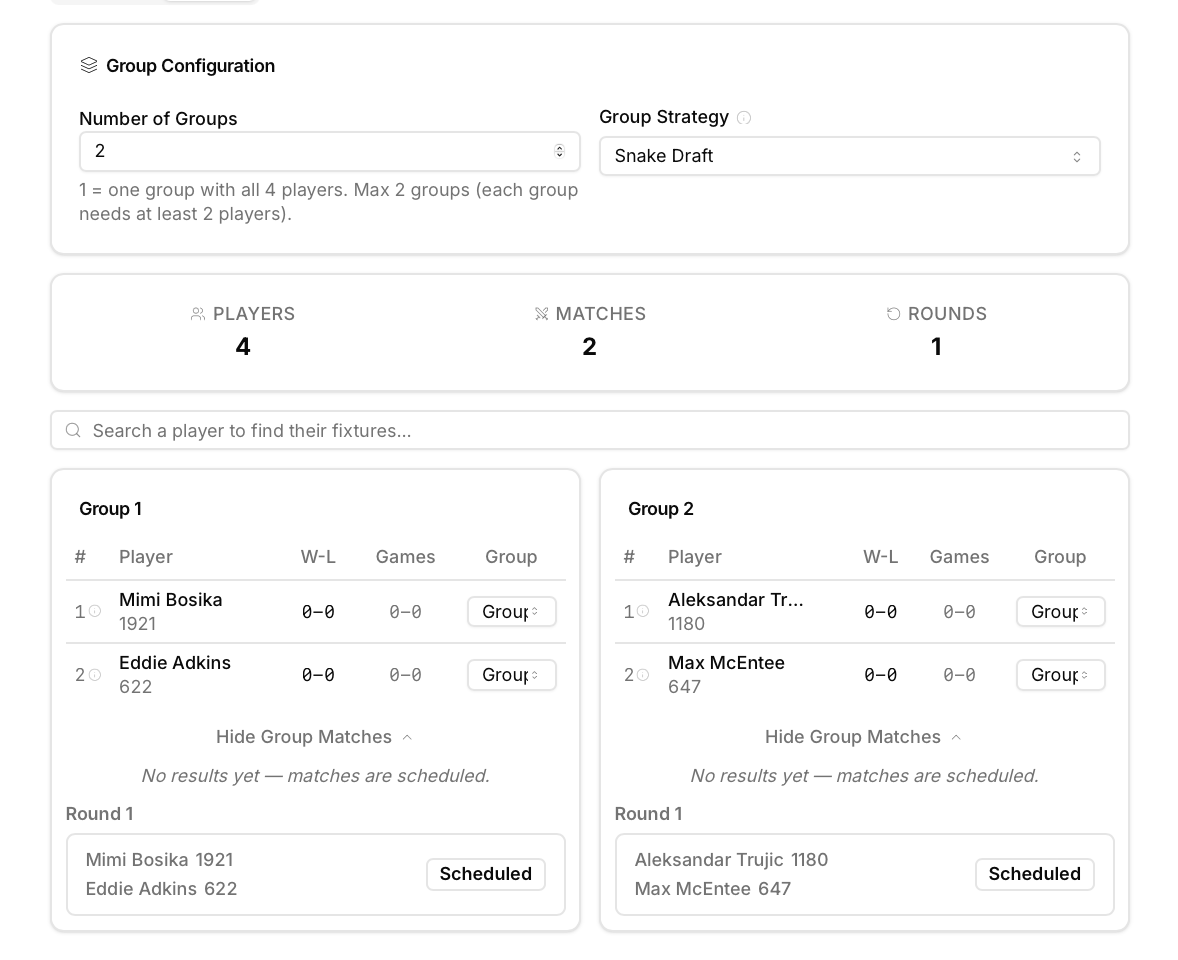
In the Actions panel, click Start Competition.
The competition status changes to In Progress, locking group and bracket settings, and making the match bracket officially live.
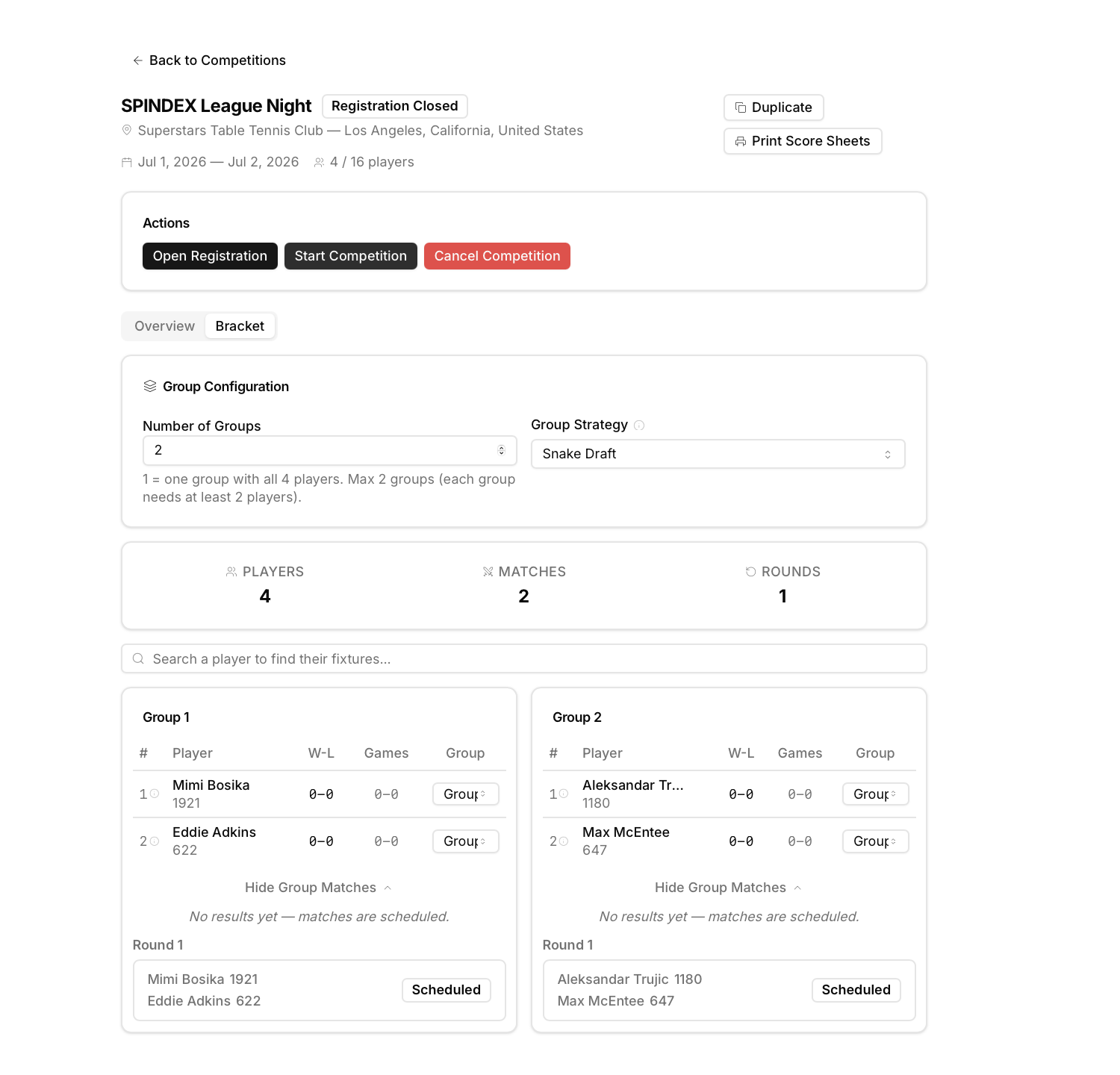
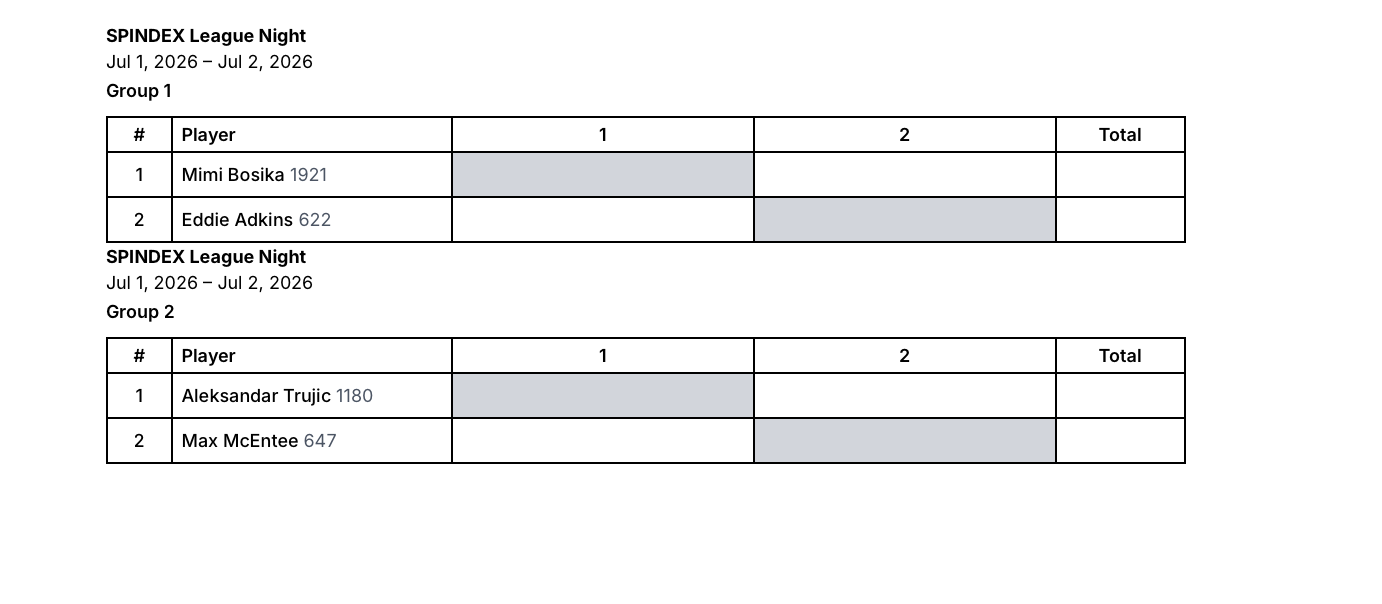
Click Print Score Sheets in the top right to generate a printable sheet for each group. Place these physical grids on each table so players can manually record their match scores during play.
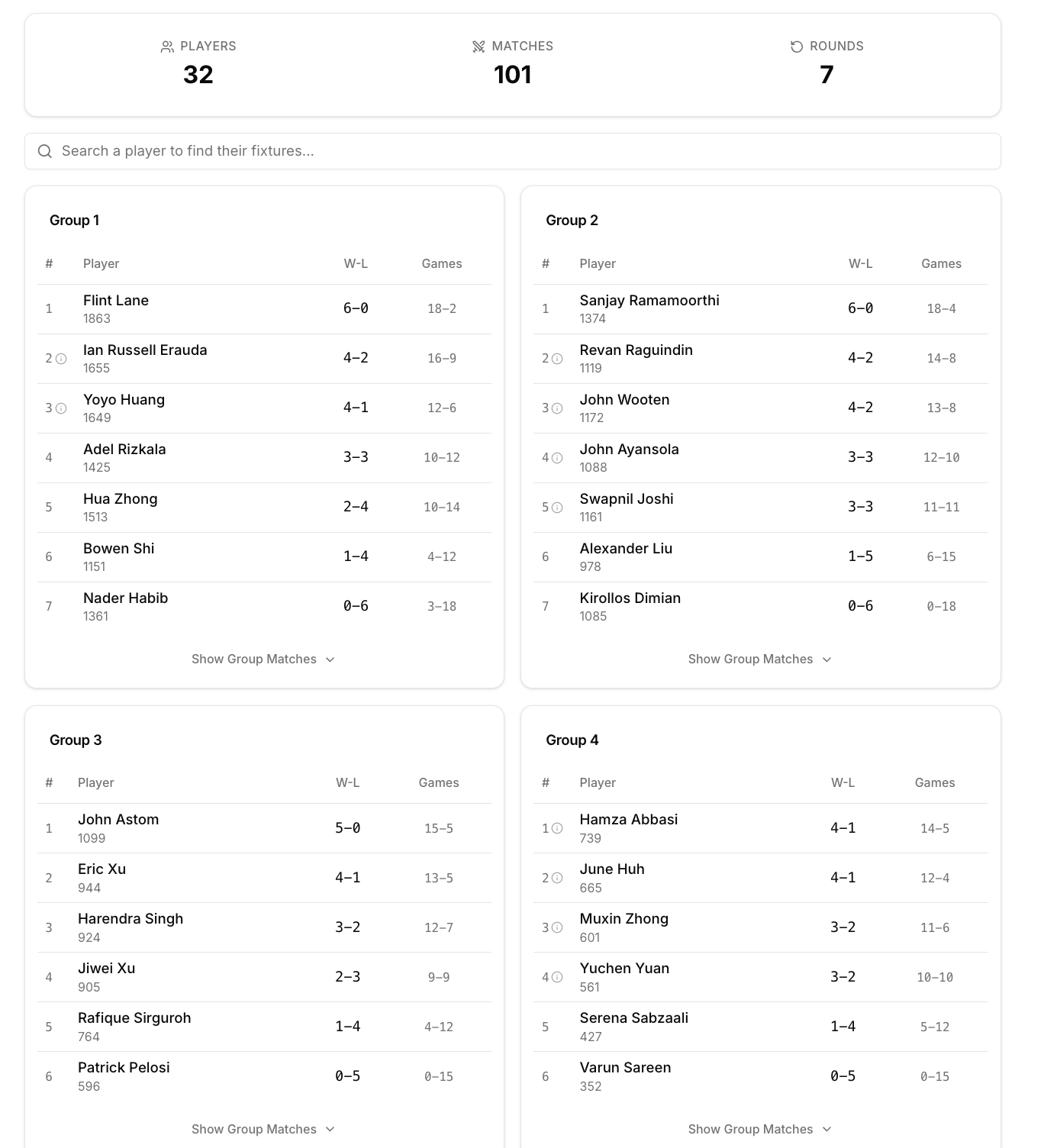
After all matches are finished, enter the scores directly into the dynamic bracket match cards (either completed by the club manager or the players).
Once all results are recorded, click Complete Competition in the Actions panel to finalize standings and update SPINDEX ratings.
Completing the competition is permanent. Double-check all match results are accurate before clicking Complete Competition.
1. Set up a Venue
Venues > + Add Venue
2. Create Competition
Competitions > + Create Competition > Fill Form > Create
3. Open Registration
Draft page > Actions > Open Registration
4. Add / Check In Players
Overview tab > Add Player or Check In button
5. Close Registration
Actions > Close Registration > Confirm
6. Configure Groups
Bracket tab > Number of Groups + Group Strategy
7. Generate Bracket
Bracket tab > Generate Bracket > Confirm
8. Start Competition
Actions > Start Competition
9. Print Score Sheets
Print Score Sheets button (top right)
10. Complete Competition
Actions > Complete Competition > Confirm After Reviewing All Results
After introducing SPINDEX Challenge Nights, Princeton Pong saw a 25% increase in weekly attendance and a clear boost in player engagement. Members were motivated by tracking their progress, and seeing their names climb the leaderboard turned every match into a reason to come back.
“I can’t believe how fast SPINDEX blew up at our club. Players are constantly talking about it—and now we have a waiting list for Challenge Nights. I really think SPINDEX is the future of table tennis.”
Ben Rosenberg
Princeton Pong Club Manager

© 2026 SPINDEX. All rights reserved.
